TiviMate Setup Guide: Playlist, EPG and Favorites
Configure TiviMate with authorized provider access, guide updates, favorites, privacy checks and focused troubleshooting.
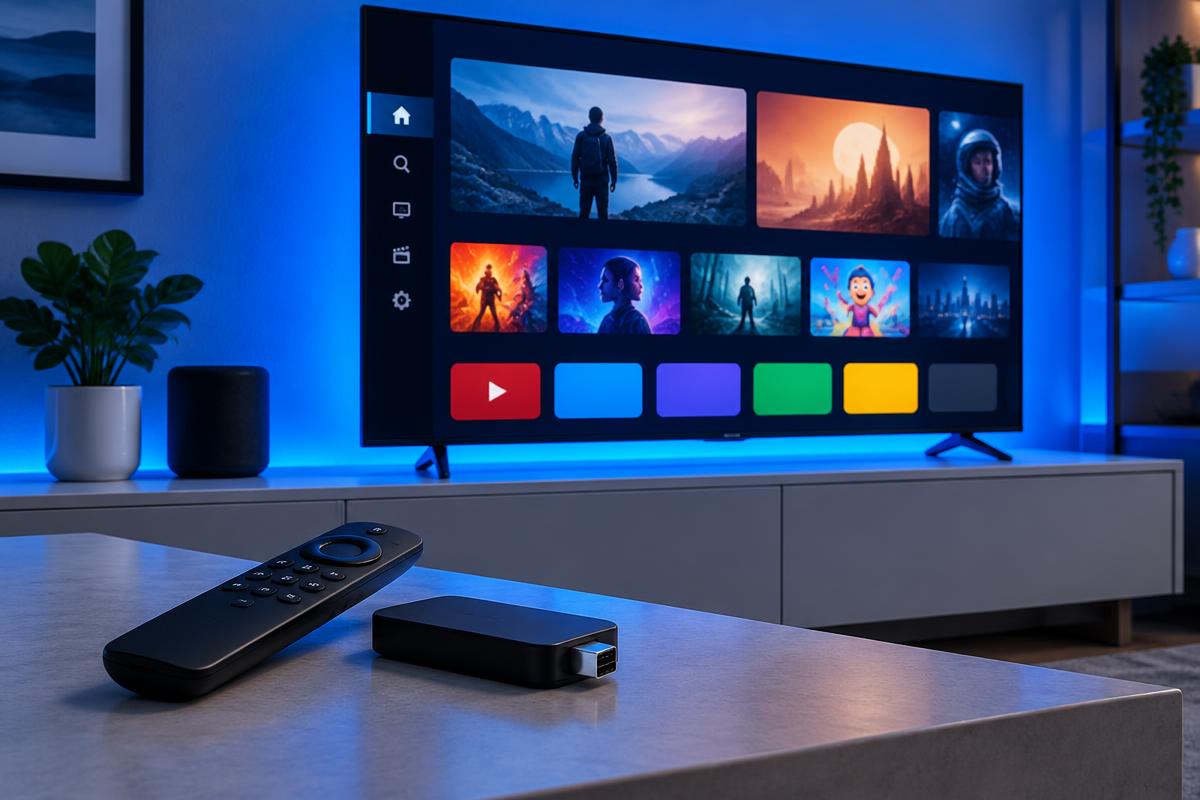
TiviMate is an Android-based IPTV player and does not sell television channels. You need authorized access details from a separate provider. Menu names can change between app versions, but the setup principles remain consistent.
Key takeaways
- 1Match the playlist format to the credentials supplied.
- 2Check device time before troubleshooting an offset guide.
- 3Favorites and hidden groups improve navigation without changing the source.
- 4Protect playlist links as carefully as passwords.
Confirm the app and access details
Install the official listing from Google Play where available. Before starting, identify whether your provider supplied a server login, an M3U URL or a separate EPG URL.
- Verify the developer on the store listing
- Confirm the subscription is active
- Keep login information out of screenshots
- Use a supported Android TV device
Add and name the playlist
Choose Add playlist, select the matching format and type the details exactly. Use a short local name that identifies the service without exposing the username.
- Server, username and password: choose the provider-login option
- Playlist URL: choose the M3U option
- Wait for processing to complete
- Correct typing errors before changing network settings
Connect and verify the programme guide
Many provider logins attach an EPG automatically. When a separate guide URL is supplied, add it under EPG sources, assign it to the playlist and run an update.
- Set the device time and time zone correctly
- Refresh the EPG after changing its source
- Check several channels before applying an offset
- Ask the provider when listings are missing at source
Build a useful everyday channel list
Mark frequent channels as favorites and hide categories you do not use. These changes affect navigation in the player, not the provider’s original playlist.
- Create a focused Favorites group
- Reorder groups for faster navigation
- Keep at least one unfiltered group for testing
- Back up settings only through trusted app features
Troubleshoot without exposing access
Update through Google Play, restart the device and compare another channel. Avoid sharing playlist URLs in messages, forums or screen recordings.
- Login fails: recheck address and credentials
- No guide: refresh and verify device time
- One item fails: report its name and time
- App-wide problem: update, restart, then reinstall if necessary
How this guide was prepared
The guide distinguishes app functions from provider functions and links to the official store listing. Steps avoid unofficial downloads and account-sharing practices.
Written by
Maya Collins
Streaming Setup Writer
Reviewed by
Daniel Reed
Technical Review Editor · 2026-09-25
Sources and further reading
Ready to start watching?
Compare Diamond IPTV plans by device count and length.