IPTV on Smart TV: Samsung, LG and Android TV Explained
Choose and configure an IPTV player for Samsung, LG or Android TV, with platform checks, secure setup and network guidance.
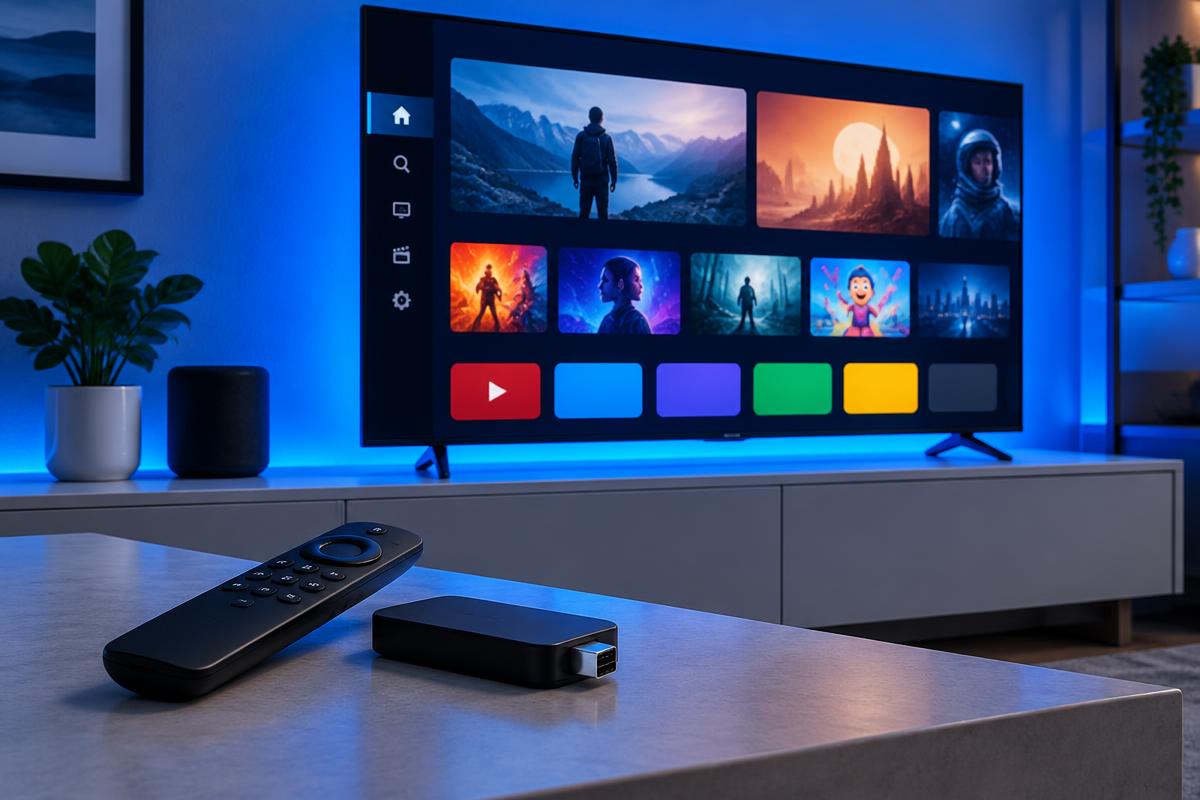
“Smart TV” does not describe one operating system. Samsung commonly uses Tizen, LG uses webOS, and many other brands use Android TV or Google TV. Identifying the platform first prevents incompatible instructions and unnecessary installs.
Key takeaways
- 1Identify the exact television model and operating system first.
- 2Use the television’s official app store.
- 3An external streaming device can extend the useful life of an older TV.
- 4Diagnose the network before changing picture settings.
Identify your television platform
Open the About, Device Information or Support screen and record the model number and software version. App availability varies by platform, region and model year.
- Samsung: usually Tizen
- LG: usually webOS
- Sony, TCL and others: may use Android TV or Google TV
- Older models: may have limited or discontinued app support
Find a player in the official store
Search the built-in store, then check the developer, update date and privacy information before installing. Similar app names do not always belong to the same company.
- Do not assume a mobile app has a television version
- Avoid instructions that require disabling security
- Confirm the app supports your provider’s login format
- Keep the app updated through the store
Decide between the TV app and an external device
A native app is convenient when the television remains fast and supported. A separate device is often easier to update or replace when the TV is slow or no longer receives current apps.
- Choose native when performance and updates are adequate
- Choose external hardware when storage is tight
- Check HDMI and power requirements before buying
- Do not replace a working TV solely for an app
Configure the connection and picture
Ethernet gives the most consistent comparison where available. On Wi-Fi, keep the television in strong coverage and test standard HD before 4K.
- Pause aggressive motion processing while diagnosing stutter
- Check that date and time are automatic
- Allow the first guide sync to finish
- Change one setting at a time
Know when the issue is not the television
A single failed channel does not prove the television is faulty. Compare other items and another streaming app, then share the results privately with support.
- Never post playlist URLs
- Do not factory-reset before simpler checks
- Document the model and app version
- Follow local content and licensing rules
How this guide was prepared
The comparison uses official manufacturer support as the primary reference and avoids promising that a particular app is available in every country or model year.
Written by
Daniel Reed
Technical Review Editor
Reviewed by
Maya Collins
Streaming Setup Writer · 2026-09-25
Sources and further reading
Ready to start watching?
Compare Diamond IPTV plans by device count and length.